
4.6 How to Use the Skill Library
The Skill Library is where you can view, create, edit, and manage your testing skills in one place.
You can use it to maintain reusable testing methods and make those skills available during future generation.
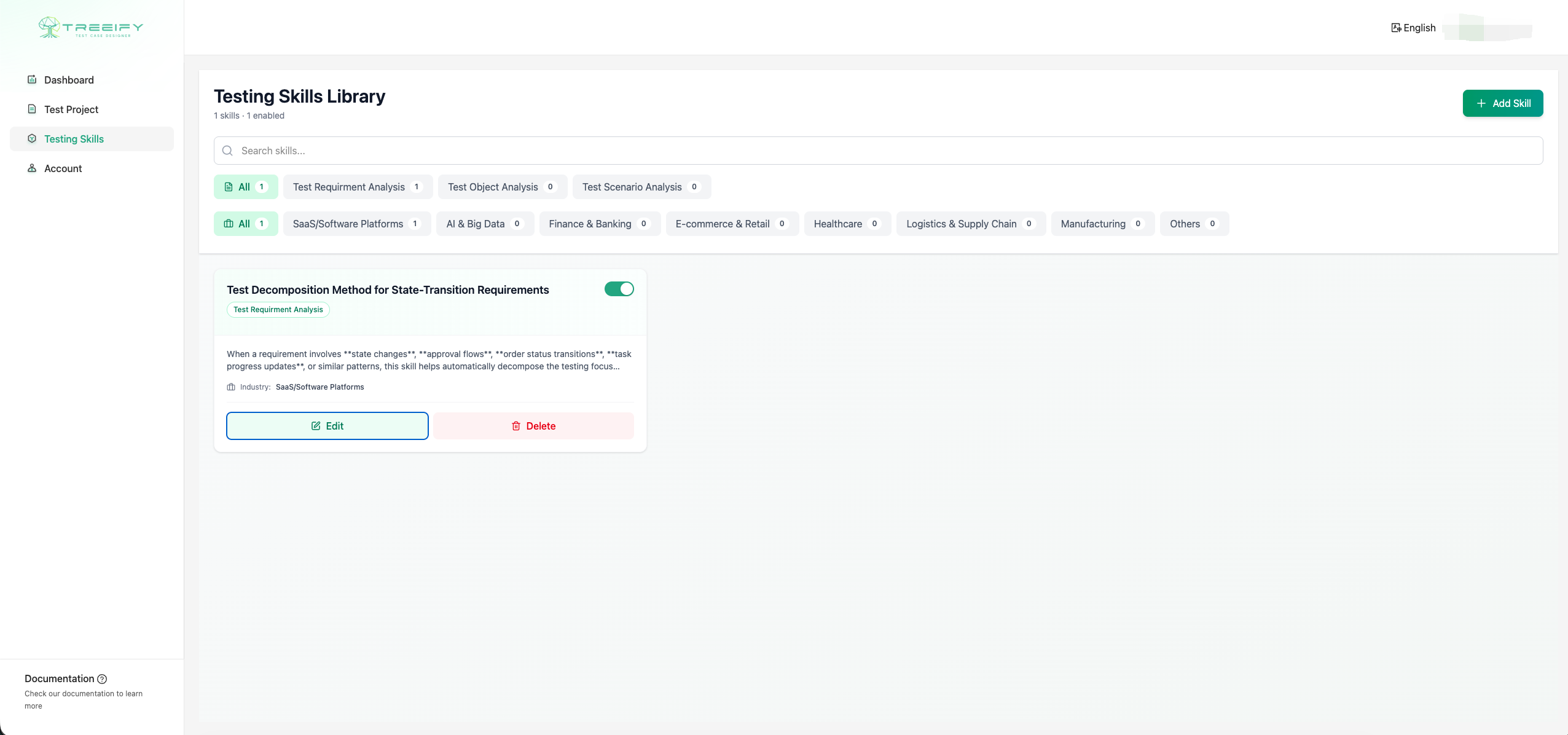
Open the Skill Library
In the left navigation menu, click Skill Library to open the page.
On this page, you can see:
- a search box for finding skills by keyword
- filters such as category, test type, and industry
- a list of all skills available under your current account
If you have not created any skills yet, the list will be empty.
What You Can Do in the Skill Library
In the Skill Library, you can:
- view all existing skills
- search and filter skills
- create a new skill manually
- edit an existing skill
- enable or disable a skill
- keep improving skills over time based on generation and chat feedback
Create a New Skill
On the Skill Library page, click Add Skill in the top-right corner.
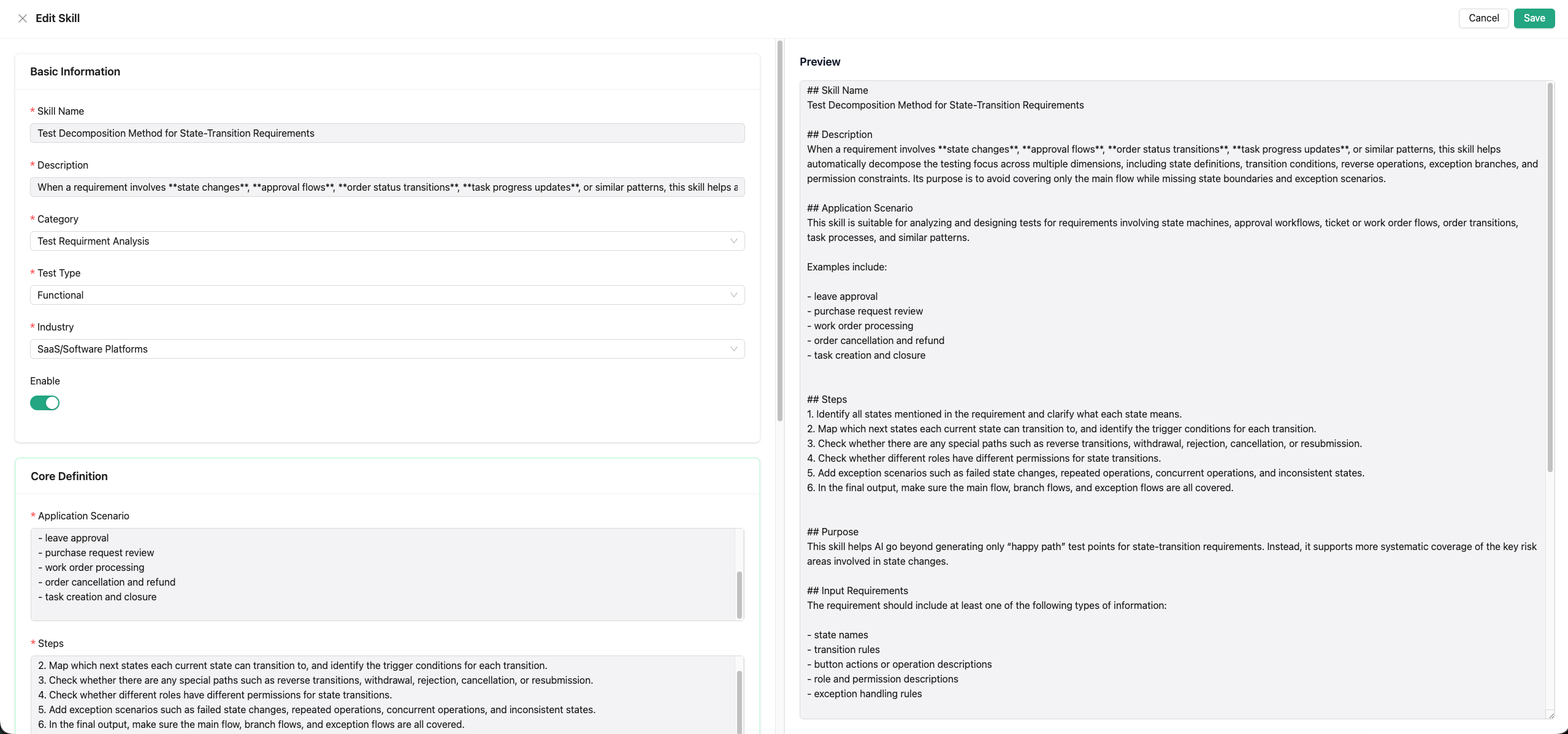
The creation page has two main areas:
- Left side: input and editing area
- Right side: live preview area
Step 1: Fill in the Basic Information
In the Basic Information section, complete the following fields:
- Skill Name: a clear name that reflects what this skill is used for
- Description: a short explanation of the skill’s purpose
- Category: the stage this skill belongs to, such as Requirement Analysis
- Test Type: the type of testing this skill supports, such as Functional
- Industry: the industry this skill is intended for
- Enabled: whether this skill should participate in future generation
Start by making sure the name and description are clear.
These fields directly affect how easy the skill is to find, understand, and maintain later.
Step 2: Define the Core Content
In the Core Definition section, enter the main content of the skill, such as:
- Use Case / Application Scenario: when this skill should be applied
- Steps: how the AI should handle this type of problem when using the skill
This section defines how the skill works in practice, so it should be as clear and actionable as possible.
Step 3: Add Supporting Information
In the Additional Information section, you can continue filling in:
- Purpose: what problem this skill is meant to solve
- Input Requirements: what kind of information is usually needed for this skill to work well
- Example: a simple example that helps explain how the skill should be used
- Notes: any limitations, boundaries, or review reminders
These fields make the skill easier to maintain and easier for you or your team to understand later.
Step 4: Review the Live Preview
As you type on the left side, the preview on the right updates automatically.
Use the preview to check:
- whether the structure is complete
- whether the wording is clear
- whether the skill matches your intended use
If anything looks incorrect or incomplete, go back to the left side and update it.
Step 5: Save the Skill
When everything looks correct, click Save in the top-right corner.
After saving, the skill will appear in the Skill Library and can be used in future generation if it is enabled.
Edit an Existing Skill
In the Skill Library list, open the skill you want to update and edit its content.
You can update fields such as:
- Skill Name
- Description
- Category
- Test Type
- Industry
- Enabled status
- Application Scenario
- Steps
- Purpose
- Input Requirements
- Example
- Notes
After making changes, click Save to update the latest version of the skill.
Enable or Disable a Skill
Each skill can be turned on or off.
- Enabled: the skill can be automatically selected and used in future generation
- Disabled: the skill remains stored in the Skill Library but will not be used during generation
If you want to keep a skill for later but do not want it to affect current generation, disable it instead of deleting it.
How Skills Are Used During Generation
Once a skill is saved and enabled, you do not need to select it manually every time.
During future generation, Treeify will automatically decide which skills to apply based on the current task, such as:
- the current stage of test design
- the selected industry
- the type of requirement being analyzed
- whether the current content matches the skill’s scenario and logic
When a skill matches the current task, it can be used to help the output better align with your testing methods and business context.
Improve Skills Through Chat and Iteration
You can also improve skills over time through project work and chat-based refinement.
Common cases include:
- turning repeated modification patterns into a new skill
- refining an existing skill after discovering gaps or unclear logic
- summarizing a useful testing method from a chat session and adding it back into the library
After refinement, the final result can be added to the Skill Library for future reuse.
You should consider updating a skill when:
- the same type of correction appears repeatedly
- a requirement pattern has a stable testing method
- you want AI to follow a more consistent testing approach in future tasks
- your team has an agreed testing rule that should be reused
Writing Recommendations
To make skills easier to maintain and more useful in future generation, follow these recommendations.
Skill Name
Use a name that clearly reflects the purpose of the skill.
Recommended examples:
- Test Decomposition Method for State Transition Requirements
- Test Analysis Method for Permission Control Scenarios
- Exception Coverage Method for Form Validation Scenarios
Not recommended:
- General Testing Skill
- My Method
- Requirement Optimization
Description
Keep the description short and direct.
One or two sentences are usually enough.
Application Scenario
Clearly define where the skill should apply.
This helps make the scope of the skill easier to understand.
Steps
Write the steps as executable analysis logic, not as abstract statements.
For example:
- Identify all states and their meanings
- Map the allowed transitions between states
- Check rollback, rejection, and cancellation paths
- Verify role-based permissions for each transition
This is more useful than writing something vague like “analyze the requirement comprehensively.”
Example: Create a Skill
Below is a sample skill you can use as a reference.
Skill Name
Test Decomposition Method for State Transition Requirements
Description
Used to identify and analyze requirements involving approval flow, order flow, task flow, or other state-based transitions, with a focus on state boundaries, exception branches, and permission constraints beyond the main flow.
Category
Requirement Analysis
Test Type
Functional
Industry
SaaS / Software Platform
Application Scenario
Suitable for leave approval, order cancellation and refund, ticket or work order flow, and task status switching scenarios.
Steps
- Identify all states and their meanings
- Map the transition relationships between states
- Check withdrawal, rejection, cancellation, and other special paths
- Verify role-based permission differences
- Add scenarios for repeated operations, invalid transitions, and inconsistent states
Purpose
Prevent AI from covering only the main flow and improve the completeness of testing for state-transition requirements.
Input Requirements
The requirement should include at least one of the following: state information, actions, or roles.
Example
After a leave request is submitted, it enters Pending Approval. A manager can approve or reject it. The employee can withdraw it before approval is completed.
Notes
If the requirement does not clearly state whether a transition is reversible, do not assume it automatically. Mark it for confirmation instead.
Frequently Asked Questions
I saved a skill, but I do not see it taking effect. Why?
Check the following:
- whether the skill is enabled
- whether the skill’s category, test type, and industry match the current task
- whether the application scenario and steps are too vague for the system to identify when to use it
Start by reviewing the skill name, description, and application scenario.
Can I save a skill with only part of the fields filled in?
Yes, but it is strongly recommended to complete at least these fields:
- Skill Name
- Description
- Category
- Test Type
- Industry
- Application Scenario
- Steps
These fields directly affect whether the skill is understandable and usable.
Is a skill a one-time configuration?
No.
You can return to the Skill Library at any time to update and improve it. You can also continue refining skills through project work and chat, then save the improved version back into the library.
Recommended Starting Point
If you are building your Skill Library for the first time, start with:
- testing methods that appear repeatedly across projects
- stable testing rules already used by your team
This makes it easier to see value early and gradually expand your library over time.